
Digitize drawings for your tattoo portfolio without losing the detail
A practical guide to photographing or scanning drawings, preserving subtle marks and preparing files to share. Understand resolution, review filters and check the copy you actually send.
The drawing is finished. The digital copy is not.
A soft petal shadow is clear in your sketchbook, yet almost disappears in the photograph. Before drawing it again, compare the file with the paper: the capture may be the problem. To digitize drawings for a tattoo apprenticeship portfolio, we suggest a simple sequence: make a faithful capture, keep that file untouched, then prepare a separate copy to share.
The useful question is not which app produces the whitest background. It is whether someone viewing the file can judge the work you actually made. This guide deals with drawings on paper. Choosing pieces and arranging a portfolio is a separate task; here, the focus is getting one of those pieces into a usable digital file.
Choose a drawing that gives you something to check
Start with a drawing of your own that includes a thin line, a dark area and a pale shadow. This is our suggested control sample: a bold outline alone may reveal little about how delicate tones survive the capture. Write down three details to inspect on screen before you begin. You might choose a leaf tip, the inside of a petal and the gap between two nearby lines.
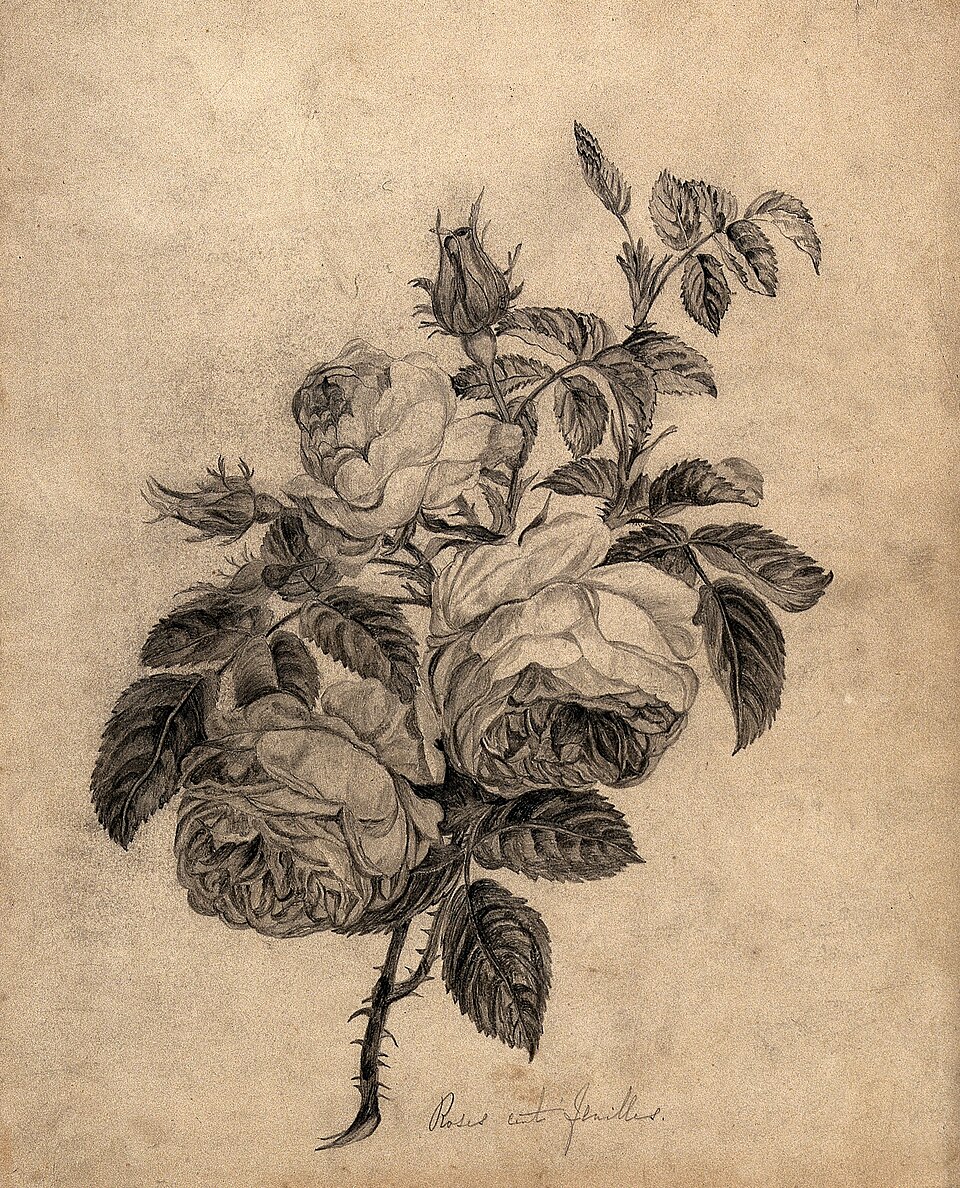
The rose reproduction on the cover offers a useful visual example. Pale petals sit beside much darker leaves on warm-toned paper. Our reading is that preserving those differences matters more than making the whole background pure white. We do not know how that artwork was originally captured; it illustrates the tonal distinctions worth looking for.
How to photograph a drawing with your phone
The New Mexico State Committee of the National Museum of Women in the Arts recommends even lighting for drawings, a neutral background and a camera parallel to the artwork. Its guide suggests indirect window light and avoiding mixed lighting that shifts colour. It also recommends camera support and a timer to reduce movement.
For your trial, leave all four corners of the sheet visible. Check the framing before cropping: a missing corner removes a useful reference when you review the page shape. Take two captures and open both rather than choosing from thumbnails. Examine the three details you noted earlier and reject a capture that does not let you distinguish them.
If you see a dark strip that is absent from the original, try changing the setup before reaching for editing controls. If the problem repeatedly appears beside the sketchbook binding, consider practising with a loose drawing you already have. Do not force a bound book flat simply to make the page easier to capture.
Using a scanner? Start with the preview
Adobe describes a workflow using the scanner’s own application: set resolution, colour mode and capture area, scan, then save a TIFF before opening it in an editor. The available settings depend on the device and its software. This separates capture from subsequent editing.
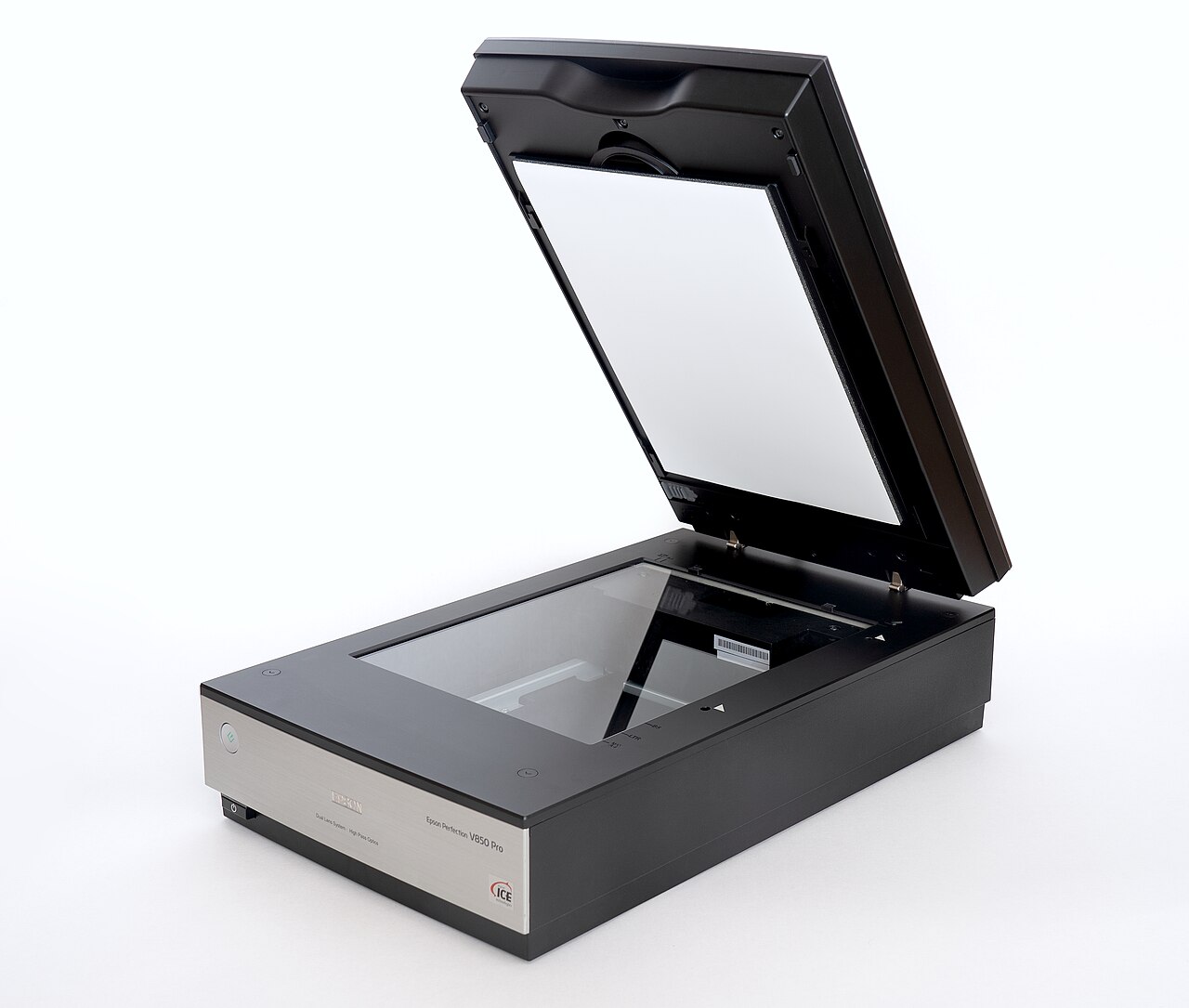
Recognising a flatbed scanner
Scanning resolution: choose the output size first
Epson’s general scanning guide suggests 300 dpi for print. For later enlargement, it advises increasing scan resolution in proportion: its example moves from 300 to 600 dpi when doubling the size. This is guidance tied to use and scale, not a universal guarantee for every drawing.
Before digitizing a whole folder, write down what the trial is for: screen viewing, an original-size print or an enlargement. If you will submit the work to a printer or an application process, check its file requirements first. You can then judge the result you need instead of chasing the highest number in the settings.
For a printed copy, our suggestion is to test one page before preparing the rest. Compare it with the original for size, detail and tone. Keep a note of the settings you used. If you repeat the trial at another resolution, leave the other choices unchanged. That makes it easier to identify which adjustment made a useful difference, rather than changing several things and guessing.
A document filter is not the same as a faithful copy
Adobe Scan’s iOS documentation distinguishes Original color, which keeps captured colours, from filters such as Auto-color and Whiteboard; the latter increases contrast. Adobe also documents an Android setting that saves original captures to the device gallery. Keeping a capture does not establish colour accuracy, but it gives you something to compare before further processing.
Try adjustments on a copy and return to your three chosen details. Is the thin line still present? Does the shadow keep its transition, or has it become a solid patch? Do two separate marks now appear joined? Those specific questions offer a clearer test than deciding one version looks more dramatic.
For a record of a finished drawing, we suggest keeping changes to those that help represent it faithfully. If you want to redraw a shape, reconstruct a line or change the shading, save that intervention as a new version of the artwork. You can then show both the original piece and its development without presenting them as the same drawing.
Three files, three different jobs
This is a proposed filing system, not a software requirement. Start with a date and a piece name you will recognise, then distinguish the following jobs. Avoid keeping only a version downloaded from a conversation or social platform: make it easy to find the capture you deliberately saved.
- Original capture: the file kept before editing, with a note identifying the drawing and its date.
- Working version: a copy for framing or tonal adjustments, with a version number if you make later changes.
- Delivery copy: the file prepared for its destination, following the requested dimensions, format and file-size limit.
Open the file you are actually going to send
Make the final check on the delivery copy. Open it outside the editor and, if the recipient is likely to use a phone, inspect it there as well. Look at the whole page first, then examine details. Check for missing edges, confirm page order if you made a PDF, and make sure the filename identifies the piece.
Ask another person to point out anywhere a line is difficult to see or a shadow is hard to read. This need not become a verdict on your entire portfolio: you are checking whether the copy lets someone see the drawing. Keep the original and an additional copy in a separate location before closing the task. A useful digitization workflow ends with a piece you can retrieve and share without guessing which file was the good version.
Sources and editorial notes
- New Mexico State Committee, NMWA · Photographing Artwork
- Adobe · Scan images into Photoshop
- Epson · What resolution should I select for my scan?
- Adobe Scan for iOS · Modify your scans
- Adobe Scan for Android · Configure Adobe Scan
- Wellcome Collection · Rose (Rosa species): flowers and leaves
- Santeri Viinamäki · Epson V850 scanner open
Manufacturer and organiser facts are linked above. Our selection and reading advice expresses TattooXpert’s editorial judgement.
Our editorial methodKEEP EXPLORING.
How to improve your tattoo drawings with useful feedback
Ask for useful feedback on tattoo drawings: focus the question, separate observation from taste and turn a comment into a test.
TattooXpert
Tattoo apprenticeship portfolio: what to include and how to arrange it
Build a tattoo apprenticeship portfolio: select your drawings, show your process and arrange the pages before approaching a studio.
TattooXpert